How to Send Offline Conversions to Google Ads with n8n (HTTP Request Guide)
- Ivan
- Tutorials , Marketing Ops
- 18 Jan, 2026
If you are running lead generation campaigns, Offline Conversion Tracking is non-negotiable. It’s the only way to tell Google, “Hey, this lead actually bought something.”
While tools like Zapier or Make have built-in modules for this, n8n currently lacks a native “Upload Offline Conversion” node for Google Ads.
But that doesn’t mean you can’t do it. In fact, doing it manually via the HTTP Request node gives you significantly more control over error handling and data formatting.
In this guide, I’ll walk you through exactly how to build a robust pipeline in n8n using the Google Ads API.
Note
While Zapier and Make have native modules for this, their usage-based pricing gets expensive quickly as your conversion volume grows.
With n8n’s Community Edition, you can self-host the platform (e.g., using the 1-click instal app on DigitalOcean) and process unlimited events for a flat server fee (often as low as $6/mo).
The Workflow Overview
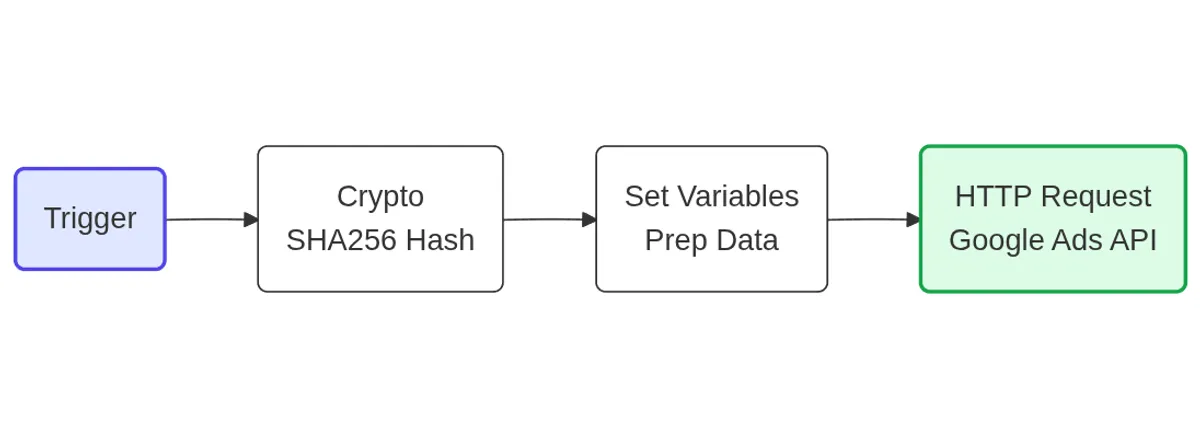
We are building a simple, linear pipeline that takes a success event (like a Stripe Charge or CRM Update) and pushes it to Google.
graph LR
    %% Style Definitions
    classDef trigger fill:#e0e7ff,stroke:#4f46e5,stroke-width:2px
    classDef crypto fill:#fff,stroke:#333,stroke-width:1px
    classDef api fill:#dcfce7,stroke:#16a34a,stroke-width:2px

    A(Trigger<br/>e.g. Stripe):::trigger --> B(Crypto<br/>SHA256 Hash):::crypto
    B --> C(Set Variables<br/>Prep Data):::crypto
    C --> D(HTTP Request<br/>Google Ads API):::api
Prerequisites: Getting Your Credentials
Before we open n8n, you need three key pieces of information from Google. This is often the hardest part, so let’s get it out of the way.
1. Developer Token
You need a “Basic Access” developer token to use the API.
- Go to your Google Ads MCC Account.
- Navigate to Tools & Settings > Setup > API Center.
- Fill out the form to request a token. (For internal use, it’s usually approved instantly or within days).
2. Client ID & Client Secret
You need to create a project in Google Cloud Platform (GCP).
- Go to the Google Cloud Console.
- Create a new project and enable the Google Ads API.
- Go to APIs & Services > Credentials and creating an OAuth 2.0 Client ID.
- Copy your Client ID and Client Secret.
3. Conversion Action ID
- In Google Ads, go to Goals > Conversions > Summary.
- Click on the conversion action you want to track (e.g., “Qualified Lead”).
- Look at the URL in your browser. You will see
ctId=123456789. That number is your Conversion Action ID.
Step 1: Hashing the Email (Privacy First)
Google requires “Enhanced Conversions” data to be hashed using SHA-256. You cannot send plain text emails.
- Add a Crypto node to your n8n workflow.
- Action: Hash.
- Algorithm: SHA-256.
- Value: Map the user’s email from your trigger node.
- Property Name: Set this to
sha256_email.
Note: Google expects the email to be lowercase and trimmed of whitespace before hashing. You can use a generic function {{ $json.email.trim().toLowerCase() }} inside the Crypto node value field to ensure this.
Step 2: Preparing the Data
To keep our HTTP request clean, I recommend using a Set (or “Edit Fields”) node to define all our variables in one place.
Create a new node and define the following fields:
customer_id: The Google Ads account ID where the conversion belongs (digits only, no dashes).conversion_action_id: The ID you grabbed from the URL earlier.order_id: A unique transaction ID (e.g., Stripe Charge ID). This prevents duplicate reporting.conversion_value: The numeric value of the sale (e.g.,99.00).currency_code: ISO currency code (e.g.,USD,EUR).conversion_date: The time the conversion happened.login_customer_id: If you are using an MCC account to authenticate, put your MCC ID here. If you are using a direct account, put the standard account ID.
Step 3: The HTTP Request (The Heavy Lifting)
Now for the magic. We will send a POST request to the Google Ads API.
Authentication
In the n8n HTTP Request node:
- Authentication: Predefined Credential Type.
- Credential Type: Google Ads OAuth2 API.
- Setup: Enter your Client ID, Client Secret, and Developer Token here.
Request Configuration
-
Method: POST
-
URL:
https://googleads.googleapis.com/v20/customers/{{ $json.customer_id }}:uploadClickConversionsNotes:
Use v20 or the latest stable version.
Replace
{{ $json.customer_id }}with your variable if not dragging manually.
Headers
You must manually add these headers for the request to work:
developer-token: Your API Developer Token (Yes, even if it’s in the credential, adding it here ensures it’s passed correctly in custom calls).login-customer-id:{{ $json.login_customer_id }}(Crucial if you are authenticating via an MCC).
The JSON Body
Select “JSON” as the Body Content type and paste this structure:
{
  "conversions": [
    {
      "orderId": "{{ $json.order_id }}",
      "currencyCode": "{{ $json.currency_code.toUpperCase() }}",
      "conversionValue": {{ $json.conversion_value }},
      "userIdentifiers": [
        {
          "hashedEmail": "{{ $json.sha256_email }}"
        }
      ],
      "conversionAction": "customers/{{ $json.customer_id }}/conversionActions/{{ $json.conversion_action_id }}",
      "conversionDateTime": "{{ DateTime.fromSeconds($json.conversion_date).setZone($json.accountTimezone).toFormat('yyyy-MM-dd HH:mm:ssZZ') }}",
      "consent": {
        "adUserData": "GRANTED",
        "adPersonalization": "GRANTED"
      }
    }
  ],
  "partialFailure": true
}
Update the variables if needed
Need this exact workflow?
Struggling to connect your CRM to ad platforms? We build robust marketing data pipelines that just work. Let's automate your tracking.
Book a Discovery Call